1. Getting started
Install and start
There is no installer yet; the app runs from its source code. You need Node.js and npm.
npm install
npm run build && npm start
The app stores its data (projects, evidence copies, audit log, encrypted keys) in your user profile on this computer. It needs the operating system’s keychain to store API keys and cloud sign-ins, and quits with a message if the keychain is unavailable.
The welcome
The first time the app opens it asks four things. Only your name is required; every other step can be left for later, and Skip setup goes straight to the app. The welcome is shown once.
- You. Your name, and optionally your email address. Both are kept on this computer and used to label what you do in the audit log and in exports. The app does not send them anywhere.
- Where you work. On this computer alone, or with a team workspace (paste the invite link you were sent). You can join a workspace later from Settings.
- AI model. Connect the model that will read your documents (chapter 2).
- Documents. Connect Dropbox, OneDrive or Box if your documents are there (chapter 3). If they are on this computer there is nothing to connect.
The second step also mentions CiteSeal Cloud, a hosted workspace that is not available yet. Tell me when it’s ready opens a sign-up page in your browser; the app itself sends nothing.
The Home screen
Until setup is finished, Home walks you through four steps and ticks each one off.
Once all four are done, Home shows where every project stands instead, most recently used first. Each project lists its documents, how many sessions it has and when the latest started, its findings (to decide, confirmed, rejected) and how many files are on record as evidence. A label on the right names the one thing that needs you: findings waiting for your decision, no documents yet, or no session started. A project with nothing waiting is marked Up to date. Click a project to open it. A notice appears above the list if a connected AI model has no API key on this computer.
The four steps stay available under Setup: add another AI model or folder below the list, and New project creates one from here.
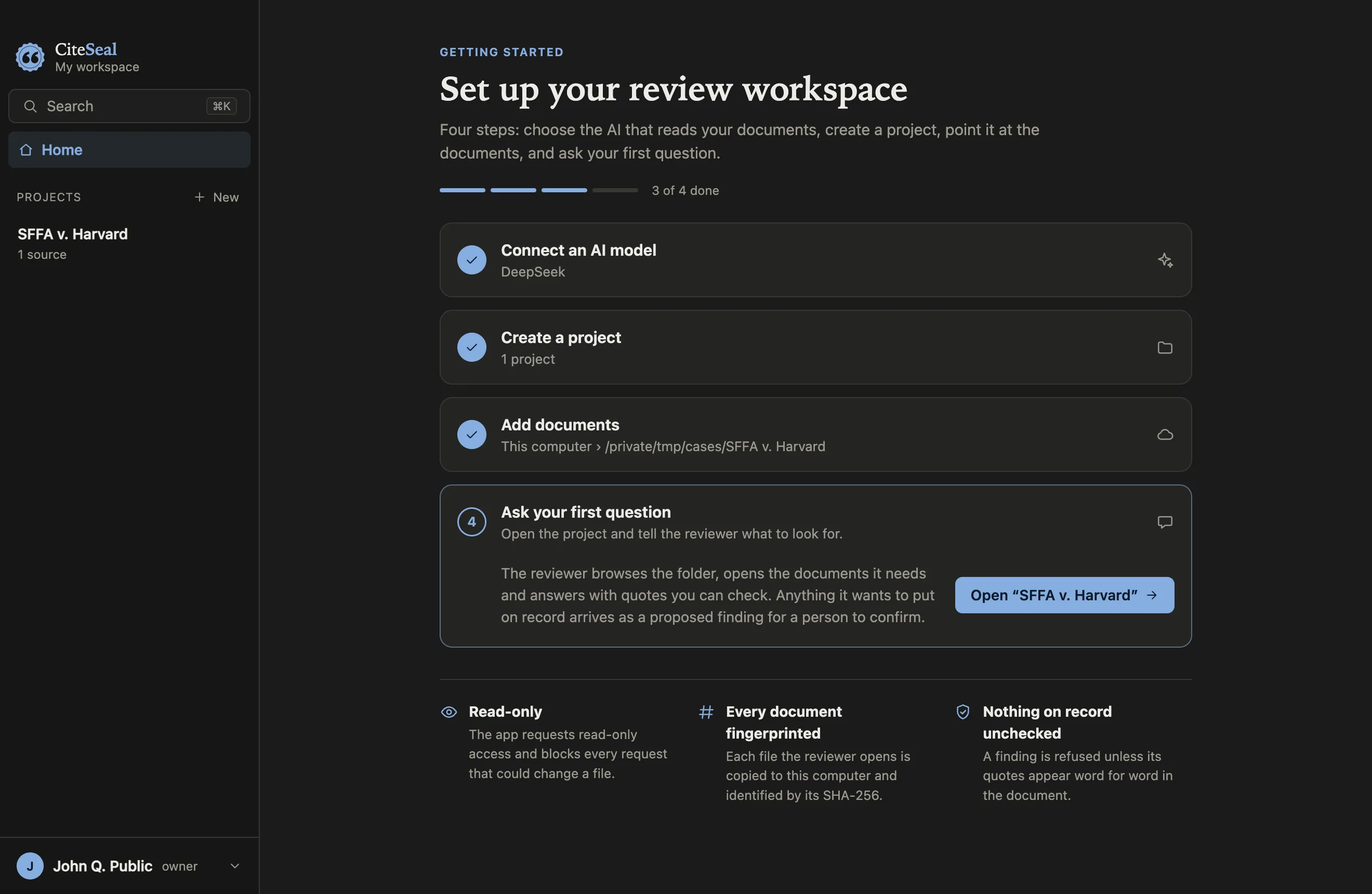
| Step | What you do | Chapter |
|---|---|---|
| Connect an AI model | Pick a provider, enter its key, Save and test. | 2 |
| Create a project | Name it and say what the review is about. | 4 |
| Add documents | Choose a folder on this computer, or a folder in Dropbox, OneDrive or Box. | 3 |
| Ask your first question | Open the project and start a session. | 4 |
The model step stays open after you save so you can see the test result. A green result means the app reached the endpoint and got a reply from the model you named.
Working entirely on this computer
Nothing has to leave the machine. In step 1 choose Ollama or LM Studio, which run a model on your own computer, and in step 3 choose A folder on this computer. No cloud account or app registration is needed, and the public-address lookup described in chapter 6 is skipped. If you use a hosted model with a local folder, the files stay where they are but the text the assistant reads is sent to that model.
Finding your way around
- Sidebar: Search, Home, your projects, and at the foot your name. Press your name for a menu with Settings, Search and, when you are not on a workspace server, the people you can act as.
- Settings: AI models, Cloud storage, Workspace server, Team. Open it from the menu under your name, or press Cmd+, (Ctrl+, on Windows and Linux).
- Search: press Cmd+K (Ctrl+K on Windows and Linux) anywhere, or Search in the sidebar, to find a project, session, finding, document on record, person or settings page by name and go straight to it. See chapter 4.
- A project: tabs for Sessions, Findings, Files, Sources, Evidence, Audit log and Team, and an Export review button.
Trying the cloud screens without a cloud account
To review local files, just choose a folder on this computer in step 3. Separately, for trying the cloud sign-in screens, the app can treat a folder as if it were a cloud drive. Start it like this:
CITESEAL_DEMO_DRIVE=/path/to/some/documents npm run dev“Connecting” a provider then opens that folder with no sign-in. This works only when running from source.